
Independent, unofficial community project. Not affiliated with, endorsed by, sponsored by, associated with, or approved by Valve Corporation.

In-game Deadlock scoreboard showing Threat HUD ranks, player win rates and Lane Advisor statistics for both teams
In-game Threat HUD overview. Open the image to inspect the full-size screenshot.

Threat HUD for Deadlock

Deadlock Threat HUD

A Panorama HUD modification with a companion Windows application for player statistics, ranks, reactions, lane matchup guidance and current-match information.

Threat HUD Bridge handles installation and activation, supplies supported data to the in-game interface, and provides a separate current-match view, reactions list and diagnostic log.

  • Windows x64
  • Single executable
  • Install and activate in the app
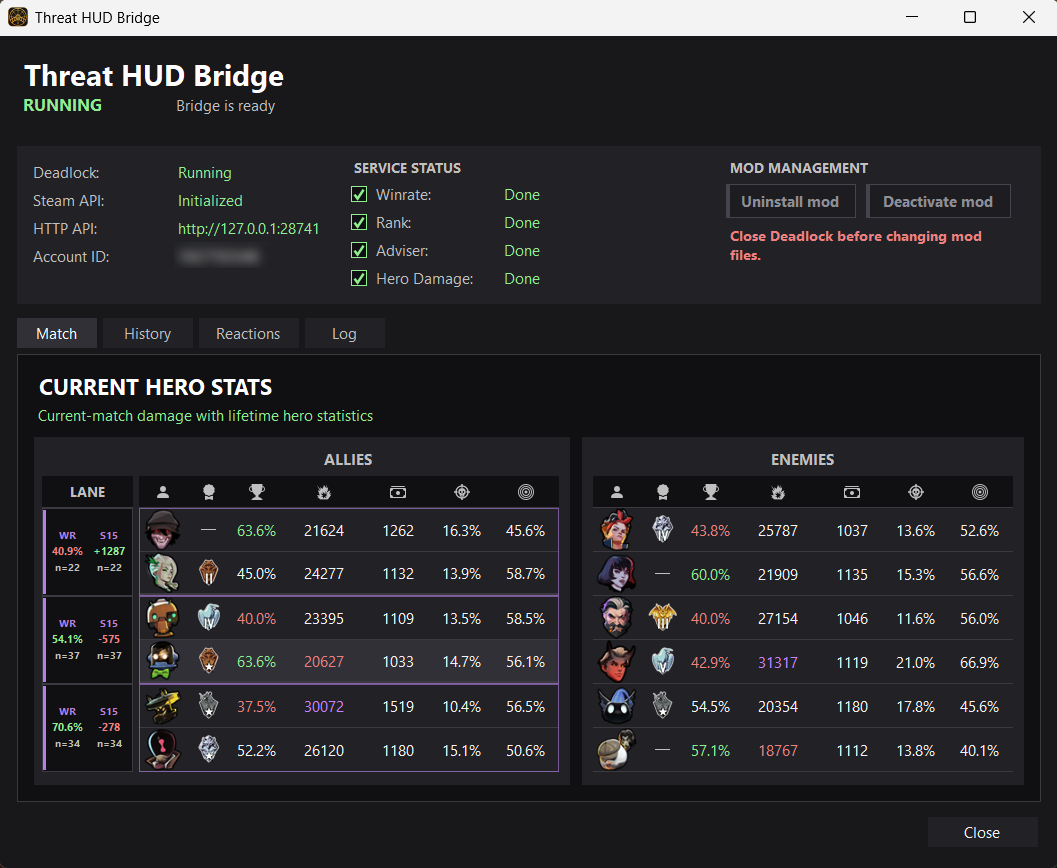
Threat HUD Bridge showing its running status, mod management controls and current hero statistics for both teams
Threat HUD Bridge Current Match tab Running

Project status

Preparing public download
Version
Preview
Platform
Windows x64
Package
Single EXE
Installation
Managed by Bridge
Top Bar Plus
Tested together

Two parts, one installation flow

The project consists of an in-game Panorama interface and a separate desktop companion. The desktop application manages the mod and handles the supported data used by Threat HUD.

01

Panorama Threat HUD

The in-game interface adds contextual information to the existing Deadlock HUD without using a DLL injector or reading game process memory.

  • Player and hero statistics
  • Player rank information
  • Lane Advisor during the opening lane window
  • Private player reaction indicators
02

Threat HUD Bridge

The Windows application installs and activates the mod, monitors its runtime state and provides current-match information outside the game HUD.

  • Install, activate, deactivate and uninstall controls
  • Current-match damage and lifetime hero statistics
  • Locally stored player reactions
  • Runtime and diagnostic log
1
Run Threat HUD Bridge Open the downloaded Windows application.
2
Install and activate Use the two mod management buttons in Bridge.
3
Launch Deadlock The Panorama interface loads with the active mod.

Current project capabilities

The table describes the current feature set without implying permanent availability after future Deadlock or third-party service updates.

Feature Location Description
Player statistics In-game HUD Displays supported player and hero performance information directly in the Panorama interface.
Player ranks In-game HUD Adds available rank information to the player presentation used by Threat HUD.
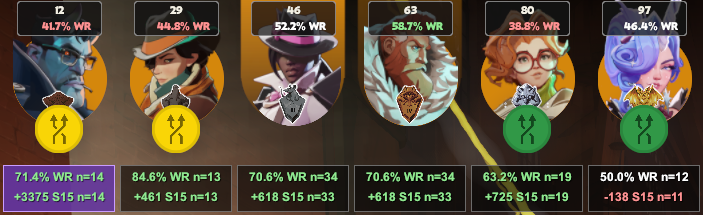
Lane Advisor In-game HUD Compares five valid opening lane states for the local player using exact historical 2v2 hero matchup data. The recommended BEST option is highlighted in purple. How the calculation works
Player reactions HUD + Bridge Stores private like or dislike notes and displays the saved reaction when the player is encountered again.
Current match view Bridge Shows available current-match damage together with lifetime hero statistics for allies and enemies.
Mod management Bridge Installs, activates, deactivates and uninstalls Threat HUD from the desktop application.

Current match context inside the existing HUD

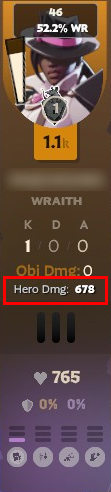
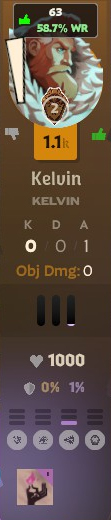
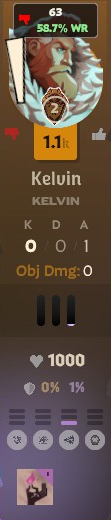
Threat HUD adds supported rank, win-rate and current-match values to the player cards. Private reactions are also shown when a saved player is encountered again.

  • Hero Dmg shows current-match hero damage
  • A green thumb marks a saved like
  • A red thumb marks a saved dislike

Five possible opening lane states

Lane Advisor compares staying in the current lane with four valid swaps involving allies from the other two duo lanes. It optimizes only the local player's future lane.

Purple marks the recommendation. The purple statistics panel is the option selected as BEST. The color is a visual recommendation marker, not a confidence percentage.

Read the full Lane Advisor methodology →
Threat HUD Lane Advisor with the BEST option highlighted in purple
The purple panel identifies the current BEST result.

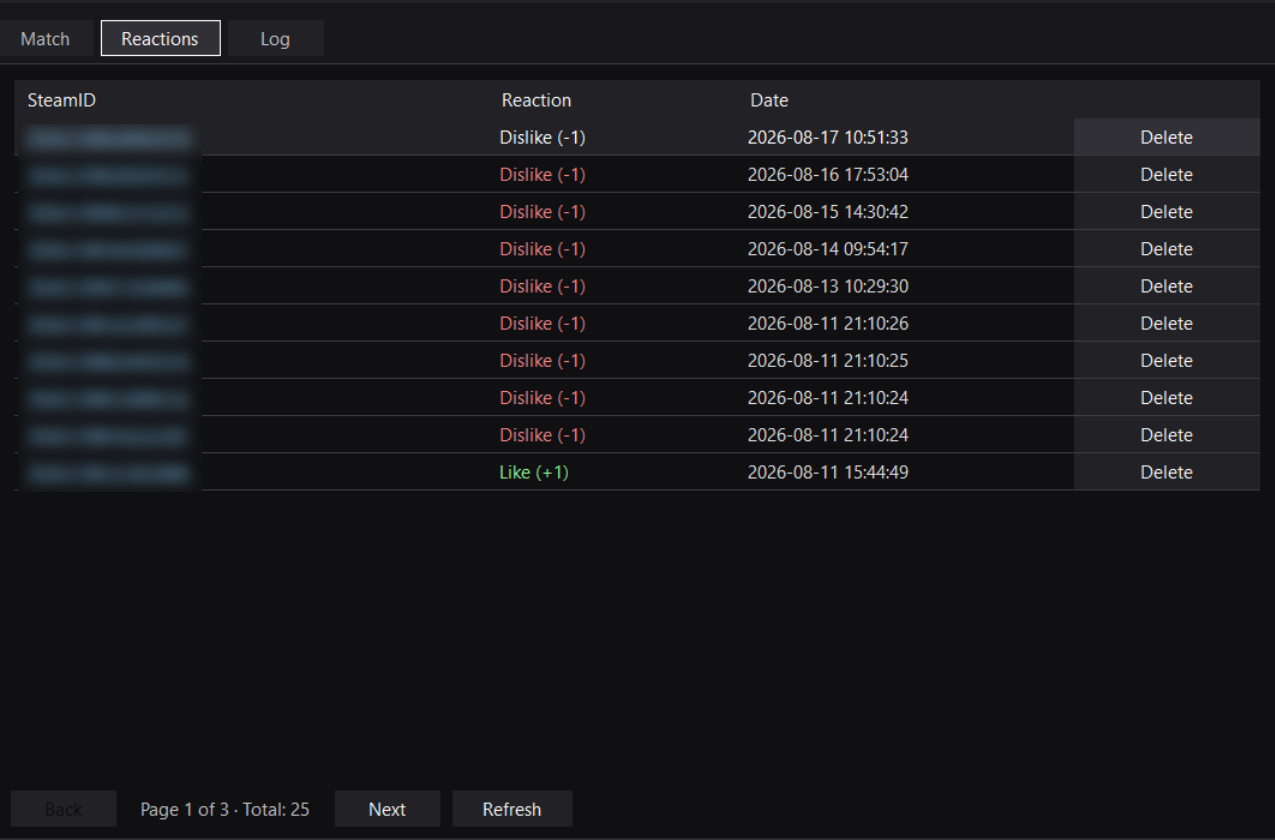
Review and remove locally stored reactions

Threat HUD Bridge keeps the reaction history on the local computer and provides a dedicated table with reaction type, saved date, pagination, refresh and delete controls.

Threat HUD Bridge Reactions tab with SteamIDs blurred
Threat HUD Bridge Reactions tab. SteamIDs are obscured in the published screenshot.

Threat HUD Bridge

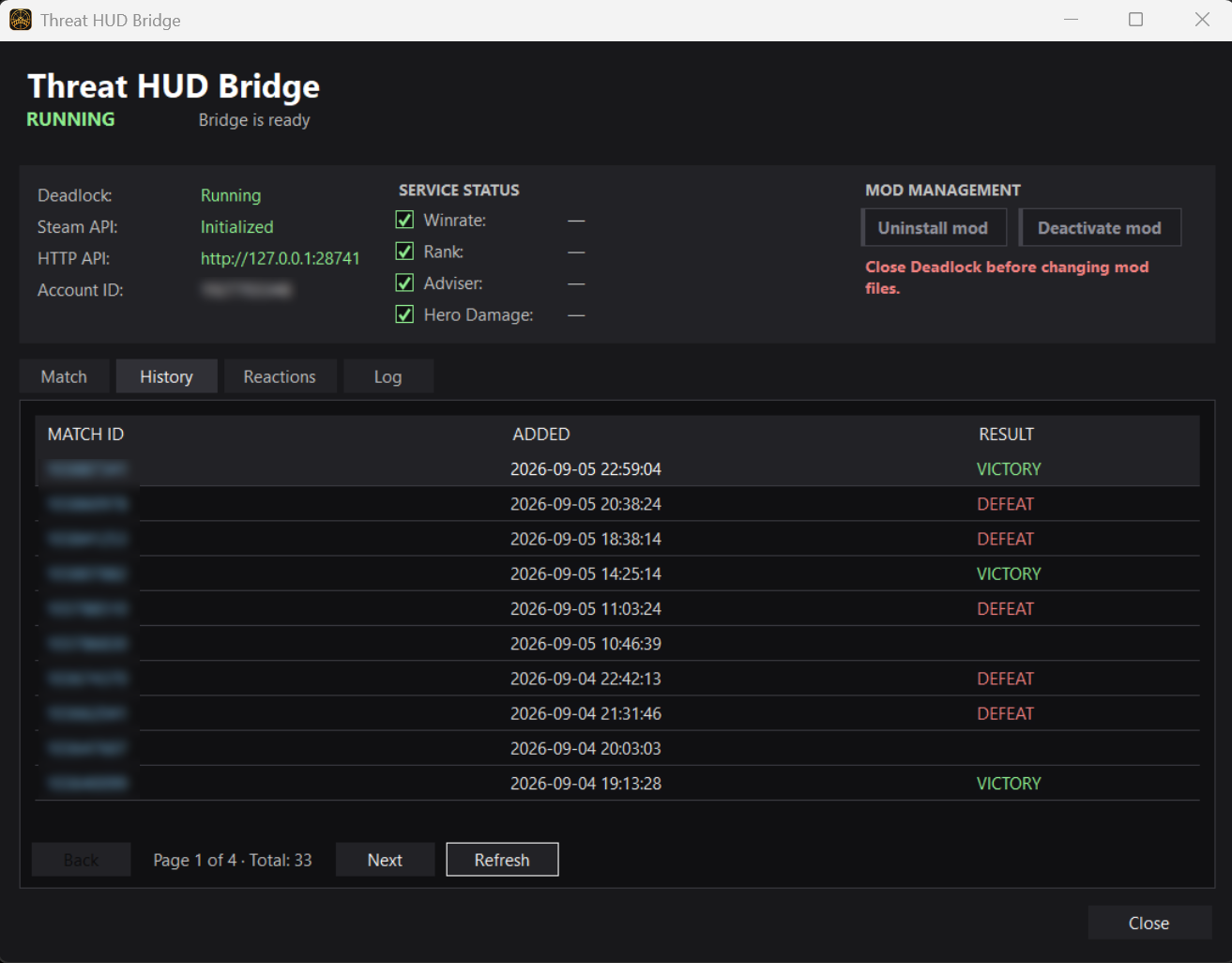
Bridge is the central control point for the mod. Its interface intentionally stays close to a conventional desktop utility: status first, explicit controls and separate tabs for match data, reactions and logs.

Once the mod is installed and active, the management controls change to Uninstall mod and Deactivate mod, making the current state visible without relying on hidden configuration files.

Runtime status Deadlock, Steam API and local HTTP API state
Mod management
Install · Activate · Deactivate · Uninstall
Match
Current hero statistics and match data
Reactions
Review and remove locally stored reactions
Log
Runtime events and diagnostic information

Install from one Windows application

No manual VPK copying is required for the current installation flow.

  1. 1

    Download the executable

    Download the current ThreatHudBridge.exe release for Windows x64.

  2. 2

    Run Threat HUD Bridge

    Open the application and wait until its initial status checks are complete.

  3. 3

    Click “Install mod”

    Bridge places the required mod files in the appropriate Deadlock installation.

  4. 4

    Click “Activate mod”

    Activate Threat HUD from the same application, then launch or return to Deadlock.

Top Bar Plus

Threat HUD has been tested alongside the current version of Top Bar Plus. During that practical test, both Panorama modifications operated simultaneously without a visible conflict.

This describes the tested versions only. Compatibility can change after an update to Deadlock, Threat HUD or Top Bar Plus.

Current implementation

These statements describe how the current version is built. They are not a Valve endorsement, an anti-cheat ruling or a permanent compatibility guarantee.

Panorama interface files
Used
Separate Windows companion
Used
DLL injection
Not used
Game process memory reading
Not used
Deadlock executable patching
Not used
Manual mod file copying
Not required
Local reaction storage
Used

Common questions

Answers are limited to the current project implementation and tested behavior.

Is this an official Valve project?

No. Deadlock Threat HUD is an independent, unofficial community project. It is not affiliated with, endorsed by, sponsored by, associated with, or approved by Valve Corporation.

How is the mod installed?

Download and run Threat HUD Bridge, click Install mod, then click Activate mod. The current process does not require manually copying a VPK.

Why is Threat HUD Bridge required?

Bridge manages installation and activation, retrieves supported player and match information, supplies data used by the Panorama HUD and provides reaction and diagnostic views.

Does it inject a DLL or read Deadlock process memory?

The current implementation does neither. It uses Panorama interface files and a separate Windows companion application.

Is it compatible with Top Bar Plus?

The current tested versions operated together without a visible conflict. This can change after an update to Deadlock or either modification.

Where are player reactions stored?

Reactions are stored locally by Threat HUD Bridge and can be reviewed or deleted from its Reactions tab.

How do I disable or remove the mod?

Open Threat HUD Bridge and use Deactivate mod to turn it off or Uninstall mod to remove the installed mod files.

Threat HUD Bridge

Windows x64 single-file application. Installation and activation controls are included in the main window.

Version
Preview
Status
Preparing public download
Download link pending